

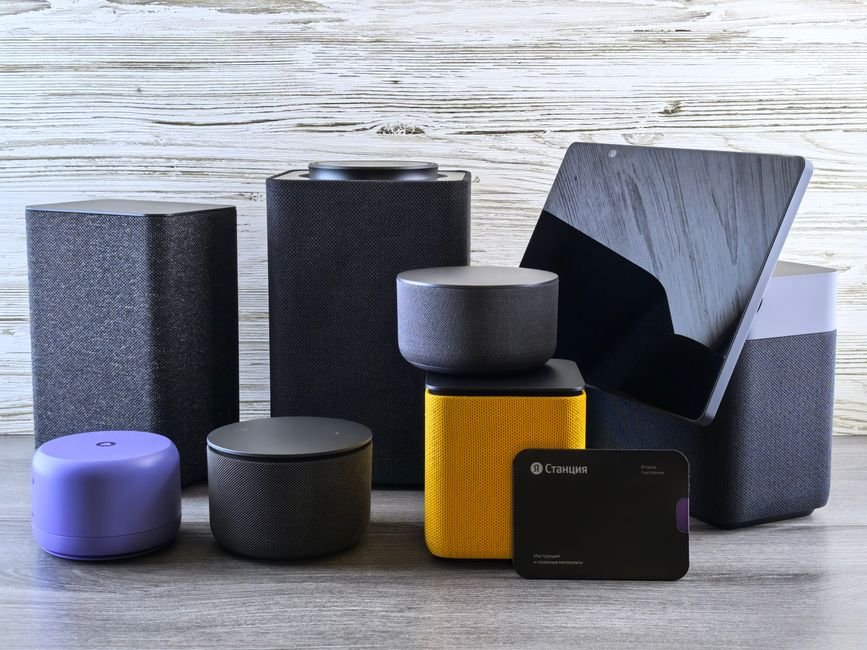
70% of smart home users experience connectivity issues when traveling. Effective troubleshooting of your smart home hub can enhance your ability to control devices remotely, making it a straightforward task rather than a source of frustration. This guide will help you resolve frequent problems before your next trip.
After years of exploring smart home technology, I’ve compiled five essential troubleshooting steps that reflect the most common issues users face. These steps are practical and easy to implement, with real-world insights to guide you through the process.

1. Check Hub Compatibility
Your first step should always be confirming that your devices are compatible with your smart home hub. Popular hubs may support various ecosystems, but not all devices work seamlessly together. If you’re in the middle of a trip and experience connectivity issues, it’s possible that a new device is misaligned with your setup or needs additional configuration.
Check the manufacturer’s specifications ahead of time to avoid connectivity headaches during your travels.
2. Inspect Network Settings
Many users overlook the impact of their network settings when troubleshooting smart home hubs. If your devices aren’t responding as expected, double-check your Wi-Fi settings, ensuring you’re connected to the correct network and that the signal is strong. Sometimes simply rebooting your router can resolve connection issues.
Consider using a Wi-Fi range extender if you have a large space, as dead spots can be the source of your problems.
3. Revisit Device Pairing
Miscommunication between your hub and devices often comes from improper pairing. If your devices start acting erratically, the solution might be as simple as re-pairing them to the smart hub. Follow the manufacturer’s instructions carefully, as different models can have varying steps for successful connection.
Always ensure you have the latest app version for your hub, as updates can streamline the pairing process.
4. Update Firmware Regularly
Firmware updates for both your smart hub and the linked devices are crucial. Manufacturers frequently release updates to address bugs and enhance performance. Neglecting this step can result in sluggish performance or intermittent issues. I recommend scheduling a check for updates regularly to keep everything running smoothly.
Some hubs offer automatic updates, but if yours doesn’t, set a reminder on your calendar to do it manually.
5. Reset Devices as a Last Resort
If all else fails, resetting the hub or the device causing you trouble might be your best option. This process restores the device to its factory settings, wiping all previous configurations. It’s usually a straightforward task but remember that you’ll need to re-configure your setup from the ground up.
Before resetting, back up any settings you can, so you don’t lose custom setups during the process.

How to Choose the Right Troubleshooting Step
For those facing connectivity issues, start by checking the compatibility of newly added devices for older hubs, which is crucial for maintaining a stable network. If the problem persists, consider upgrading to a newer hub designed for better integration with multiple devices, especially if you frequently expand your home automation system. Troubleshooting smart home hubs can involve several of these steps.
Related reading: organizer not.
Related reading: home organization.
Frequently Asked Questions
What causes smart home hub connectivity issues?
Connectivity issues with smart home hubs can be caused by factors such as weak Wi-Fi signals, interference from other devices, or incorrect network configurations. Additionally, physical obstructions or distance from the router may also contribute to connectivity problems.
How do I reset my smart home hub?
To reset your smart home hub, locate the reset button, which is often a small pinhole on the device. Press and hold this button for about 10 to 15 seconds until the device's lights indicate it is resetting.
Why won't my devices pair with the hub?
Devices may fail to pair with the hub due to incompatible protocols, insufficient power supply, or they being out of range. Ensure that the devices are compatible with the hub and are within proximity during the pairing process.
Can a smart home hub work without internet?
Yes, many smart home hubs can operate without internet as they can manage local devices over the home network. However, some features that rely on cloud services may be limited or unavailable.
How do I update my smart home hub firmware?
To update your smart home hub firmware, you typically need to access the hub's settings through its app or web interface. Look for an option labeled 'Firmware Update' or 'Software Update' and follow the on-screen instructions.




Leave a Reply