

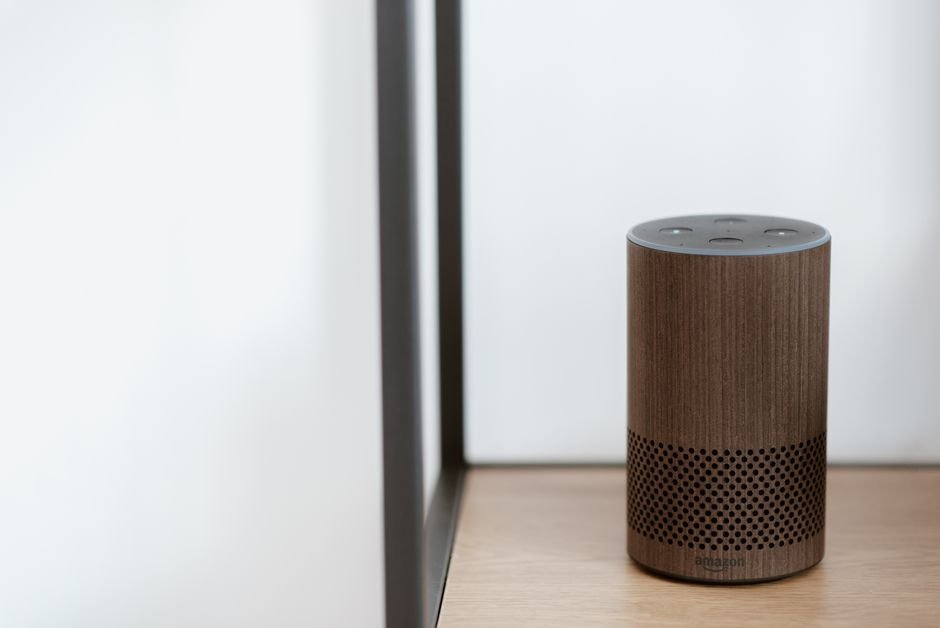
About 20% of Alexa users report issues with their devices not responding at some point. This can happen due to a variety of simple reasons, often leaving you frustrated when you just want to get things done. Understanding these common issues can help you troubleshoot effectively and quickly.
From connection problems to settings that need adjustment, these steps can guide you through the journey of troubleshooting Alexa not responding. I’ve gathered insights based on common experiences and practical solutions that can bring your virtual assistant back to life.

Common Causes of Alexa Not Responding
The first step in tackling this problem is understanding what might be causing it. The most frequent culprits include:
- Wi-Fi Connection Issues: Alexa relies on a stable internet connection. If your Wi-Fi is down or slow, she simply won’t respond.
- Device Muted: Sometimes, it’s as simple as having the microphone turned off. Check if the orange ring on your device is lit, indicating it’s muted.
- Software Glitches: Like any device, software bugs can cause hiccups. Your Alexa app or the device firmware might need an update.
- Background Noise: If you’ve got a lot of background noise, Alexa might not hear your voice command clearly, leading you to think she’s not responding.
Addressing these issues can often restore functionality without any extensive fixes. Keeping these factors in mind can help minimize your troubleshooting efforts.
Step-by-Step Troubleshooting Guide
Now that you know what could be wrong, it’s time to get hands-on with the troubleshooting. Here’s what I would do if I found myself in this situation:
- Check Your Wi-Fi: First, ensure your Wi-Fi connection is active. If your other devices can connect, the issue might not be with your network. If they can’t connect, you might need to reboot your router.
- Look for Muted Microphone: If your device has a mute button, make sure it’s not activated. You can usually find it on the top or side of your Alexa device. Just press the button to unmute, and see if she responds.
- Reboot Your Device: A simple restart might fix any minor software glitches. Unplug the device, wait about 30 seconds, and plug it back in. This process works surprisingly well for many tech issues.
- Update Software: Check for updates in the Alexa app. The app usually prompts you if your device needs a software update. Stay current; updates can fix known issues.
- Reduce Background Noise: Move to a quieter location or try lowering background noise. A simple test is to make a command while others are talking. If it works in a quieter room, that’s your answer.
If you follow these steps, you’ll often uncover the problem leading to your Alexa’s silence. Each point is not just about solving the problem but also preventing future occurrences.
When to Reset Settings
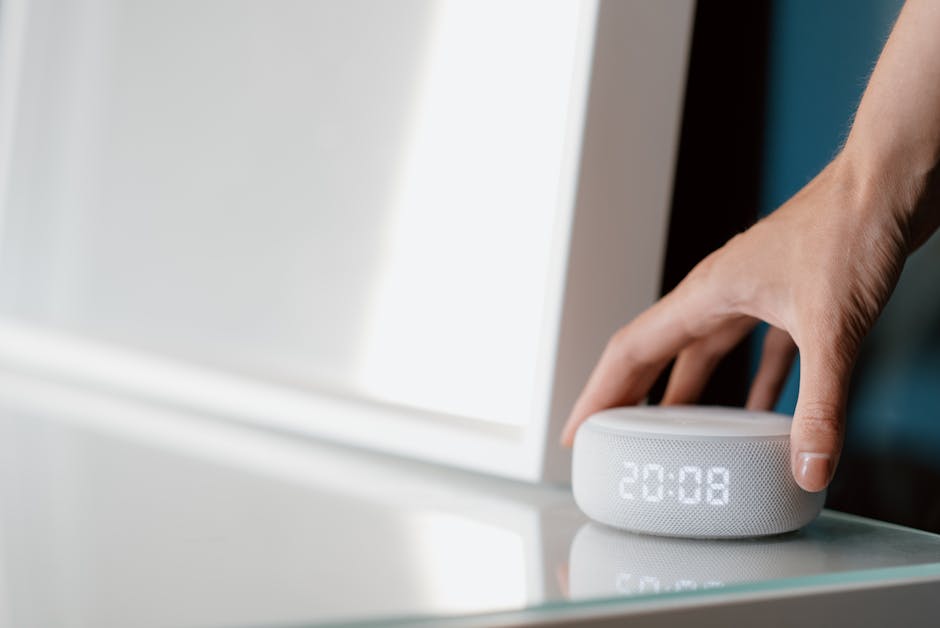
If your Alexa device still isn’t responding after all the previous steps, you might consider a reset. Keep in mind that resetting your device will clear all settings and configurations. Before proceeding, ensure you’ve saved any valuable information regarding custom settings.
To reset, typically, you’ll need to press and hold the microphone and volume down buttons simultaneously. For some devices, you may need to hold the action button instead until you see the light ring change color. This signifies that the reset has been initiated.
This step is worth taking when all else fails. However, remember that a reset should be an absolute last resort, as it’ll require you to set up your device again from scratch.
See also our take on closet organizer not fitting.
See also our take on effective solutions.
Conclusion: Take Action, Stay Connected
Start by checking your Wi-Fi connection and ensuring the device isn't muted, as these are usually the easiest fixes. For those comfortable with technology, a reboot or software update is ideal, while a complete reset should be reserved for persistent problems, keeping in mind you'll need to set your device up again. Additionally, for more comprehensive troubleshooting techniques on troubleshooting Alexa not responding, consider exploring additional resources.
Frequently Asked Questions
Why does Alexa stop responding?
Alexa may stop responding due to a weak internet connection, a software glitch, or because it couldn't hear the wake word. Environmental noise or obstruction can also affect its ability to respond.
How do I reset Alexa?
To reset Alexa, you can press and hold the Action button for about 25 seconds until the light ring turns orange and then blue. Alternatively, you can reset it through the Alexa app by going into the device settings.
Can Alexa work offline while traveling?
No, Alexa requires an internet connection to function. While some features may work with limited connectivity, full voice command capabilities will not be available offline.
What causes Alexa to not respond?
Alexa may not respond due to various reasons, including connectivity issues, hardware malfunction, or if it doesn't detect the wake word properly. Additionally, privacy settings may also affect its responsiveness.
Is there a manual mode for Alexa?
Alexa does not have a traditional manual mode, but you can manually control certain functions through the Alexa app, such as music playback or smart home device management. Most interactions, however, are designed to be voice-activated.



Leave a Reply