

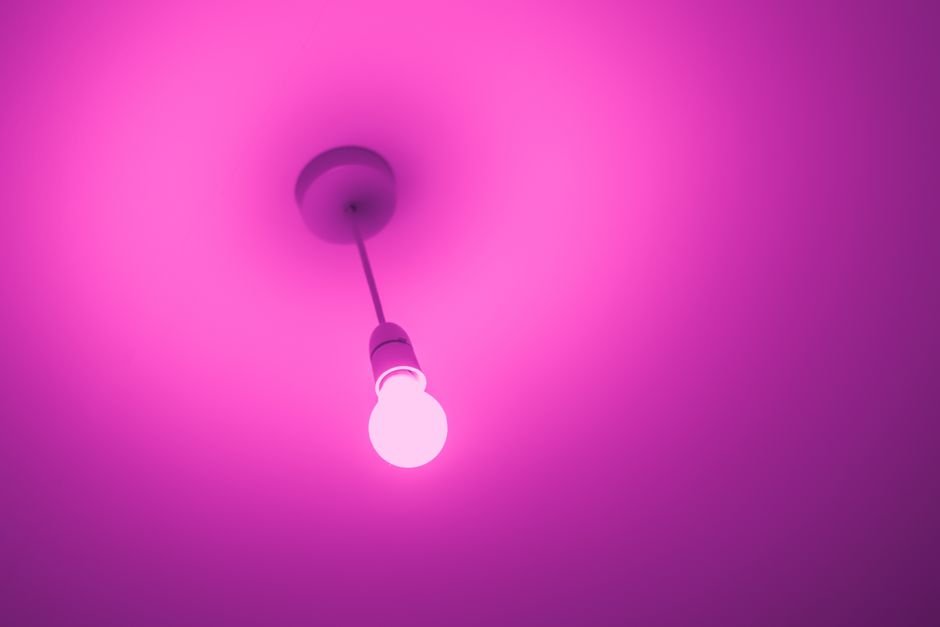
Twenty percent of users struggle with connecting their Philips Hue bulbs to their network during setup. This issue can disrupt your entire smart home system, stemming from various causes like Wi-Fi signal interruptions or incorrect configurations. Here are effective troubleshooting steps to help resolve these connection problems based on user experiences and practical insights.
Understanding where and why your Philips Hue bulbs are struggling to connect can streamline the troubleshooting process. Whether you’re a tech-savvy enthusiast or a casual user, dealing with connectivity issues can be a headache. Here’s a deep dive into potential causes and logical steps to take.

Common Philips Hue Connection Issues
The first thing to look out for is the most common issue: Wi-Fi connectivity. If your bulbs aren’t connecting, they’re likely having trouble communicating with the Hue Bridge, which requires a stable network to function properly. Ensure that your router’s signal reaches the bulbs. Walls and appliances can interfere with signals, especially if the bulbs are far from your router.
Another frequent issue is the settings on your router. Many people overlook common settings that affect device connections, such as the 2.4 GHz vs. 5 GHz band. Philips Hue bulbs only operate on the 2.4 GHz band. You want to ensure that your bulbs and the Hue Bridge are connected to the same network. Sometimes, a simple restart of your router can resolve underlying connectivity problems as well.
Step-by-Step Troubleshooting Guide
Let’s break it down into actionable steps. First, confirm that your Philips Hue Bridge is powered on and displaying a solid blue light. If it’s blinking, it indicates a connection issue. The Bridge should ideally be connected to your router via Ethernet cableas this can improve stability.
When I switched my setup to a wired connection for my Bridge, my overall network performance improved significantly.
If the Bridge’s light is stable but your bulbs won’t connect, try resetting the bulbs. You can do this by turning the bulb on and off six times in quick succession. This process can help re-establish a connection to the Hue Bridge. After resetting, they should automatically try to reconnect.
If they still don’t, open the Philips Hue app and attempt to add them again manually. Make sure your app is up-to-date.

Advanced Solutions for Persistent Issues
If you’re still grappling with connection issues after trying the basic steps, it’s time to explore advanced solutions. Consider checking the firmware for your Hue Bridge. Updates are released regularly to fix bugs and improve performance. Keeping your devices updated ensures they benefit from the latest features and security improvements.
Your router settings might need adjustments as well. Disabling MAC address filtering (if enabled) and ensuring UPnP (Universal Plug and Play) is enabled can help devices communicate more effectively. In my setup, tinkering with Quality of Service (QoS) settings offered further stability, prioritizing traffic to important devices like the Hue Bridge.
Device Interference and Range
Sometimes, interference from other devices or networks can cause issues. Ensure there are no other heavy devices using the network, especially during the initial setup or pairing process. Items like microwaves, cordless phones, and baby monitors often operate on the same frequency and can disrupt connections.
Additionally, the range of your router might be a limiting factor. If your bulbs are positioned far from the Bridge, it may be worth using a Hue signal booster or placing the Bridge in a more central location. I found that moving my Bridge to a less congested area improved its signal strength significantly, allowing my bulbs to connect smoothly.
Final Updates and Recommendations
For the best results, I recommend using the Philips Hue Bridge, as it reliably connects multiple bulbs and ensures seamless control. If you're using only a couple of bulbs, and need a simpler solution, consider Bluetooth-enabled Philips Hue options that don't require a bridge but have limited range and features.
Worth reading alongside this: closet organizer not. Also, for a better understanding of the layout of your connection, consider checking a panoramic view from the interior.
Related reading: dirt common reasons.
Frequently Asked Questions
Why are my Philips Hue bulbs not connecting?
Philips Hue bulbs may not connect due to issues like a weak Wi-Fi signal, the bridge being out of range, or outdated firmware. Additionally, interference from other devices can hinder connectivity.
How do I fix Philips Hue connection issues?
To fix connection issues, ensure that your Philips Hue bridge is powered on and connected to your Wi-Fi network. You can also try resetting the bulbs, moving the bridge closer, or checking for firmware updates.
Can Philips Hue bulbs work without a bridge?
Yes, Philips Hue bulbs can work without a bridge if you use the Philips Hue Bluetooth version, which allows you to control the bulbs directly via the Hue Bluetooth app. However, this limits functionality compared to using a bridge.
What causes Philips Hue to disconnect?
Philips Hue bulbs can disconnect due to network issues, such as Wi-Fi signal loss, or if the bridge experiences power interruptions. Additionally, if the bulbs are too far from the bridge, it can lead to connectivity problems.
Is there a way to reset Philips Hue bulbs?
Yes, Philips Hue bulbs can be reset by turning the bulb on and off six times in quick succession to revert it to factory settings. Alternatively, you can use the Philips Hue app for a soft reset if the bulb is still responding.


Leave a Reply